
Skip to content

Your slicer setup.
Done for you.

Stop losing hours to support fiddling, orientation guesswork, and setting hunts. Slicer Ninja's AI agent gives you a file that opens ready—with every choice explained and changeable.

Prepare a model AI does the setup. You keep control.
Scroll
OrcaSlicerBambu StudioPrusaSlicerCuraPLAABSPETGTPUNylon

Open your slicer.
The work is already done.

No blank build plate. No setup checklist. You get one file with the model repaired, oriented, arranged, and configured for your printer and material. Open it in the slicer you already use and review every choice.
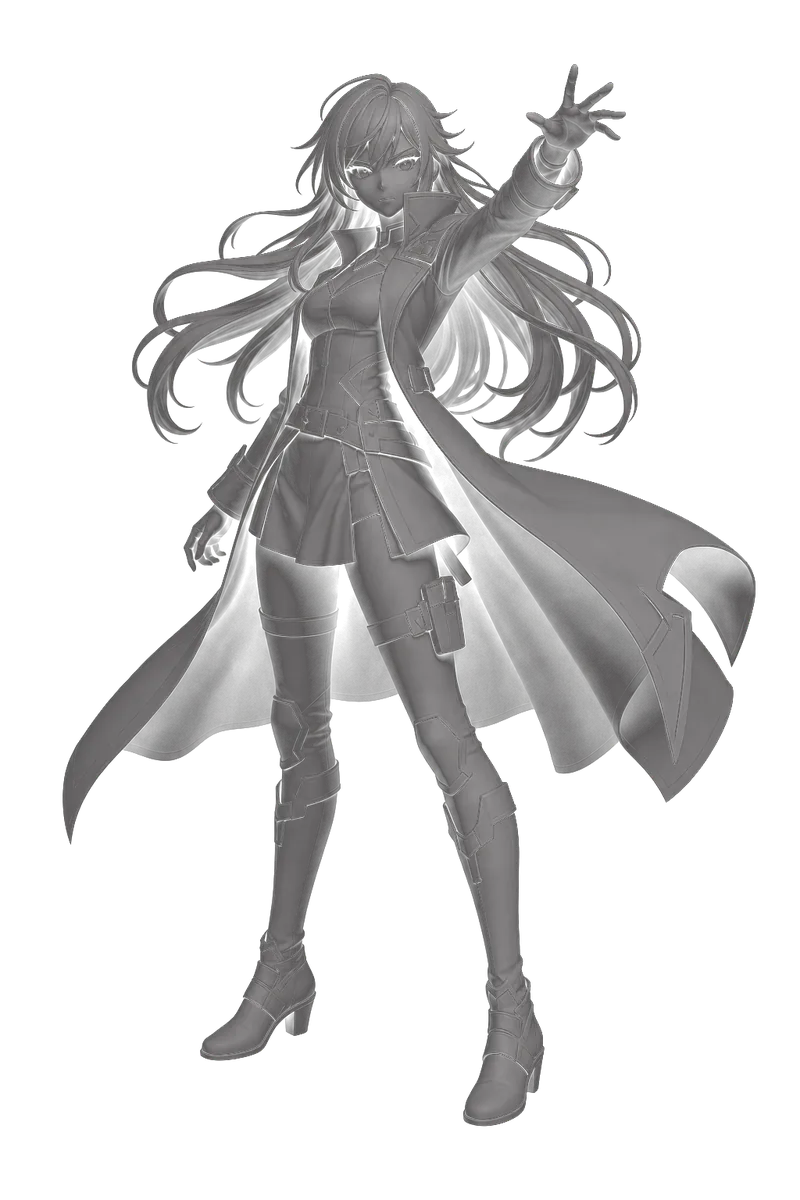
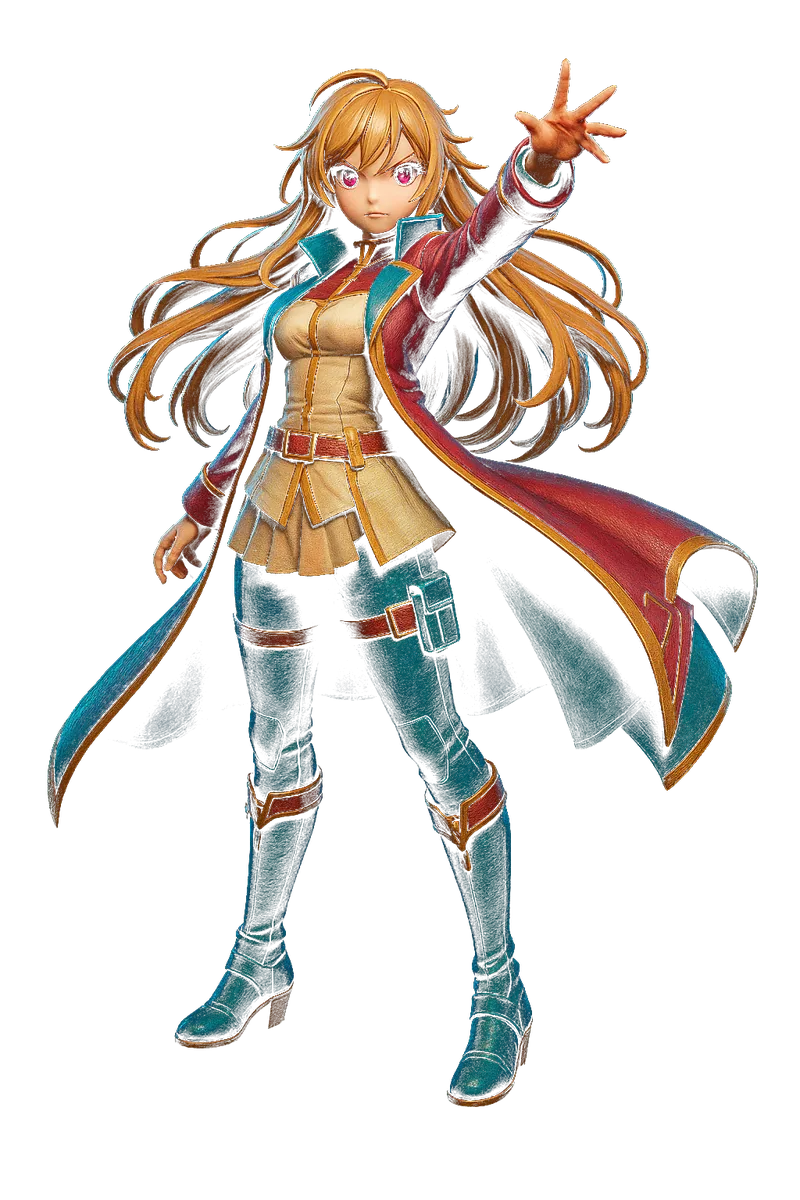
Sealed and solid Turned the right way up Sat flat on the bed Every setting chosen
A character model as a plain grey untextured file. The same character, printed and painted. Your file Your print
Step 1 of 3

Hidden model problems,
handled for you

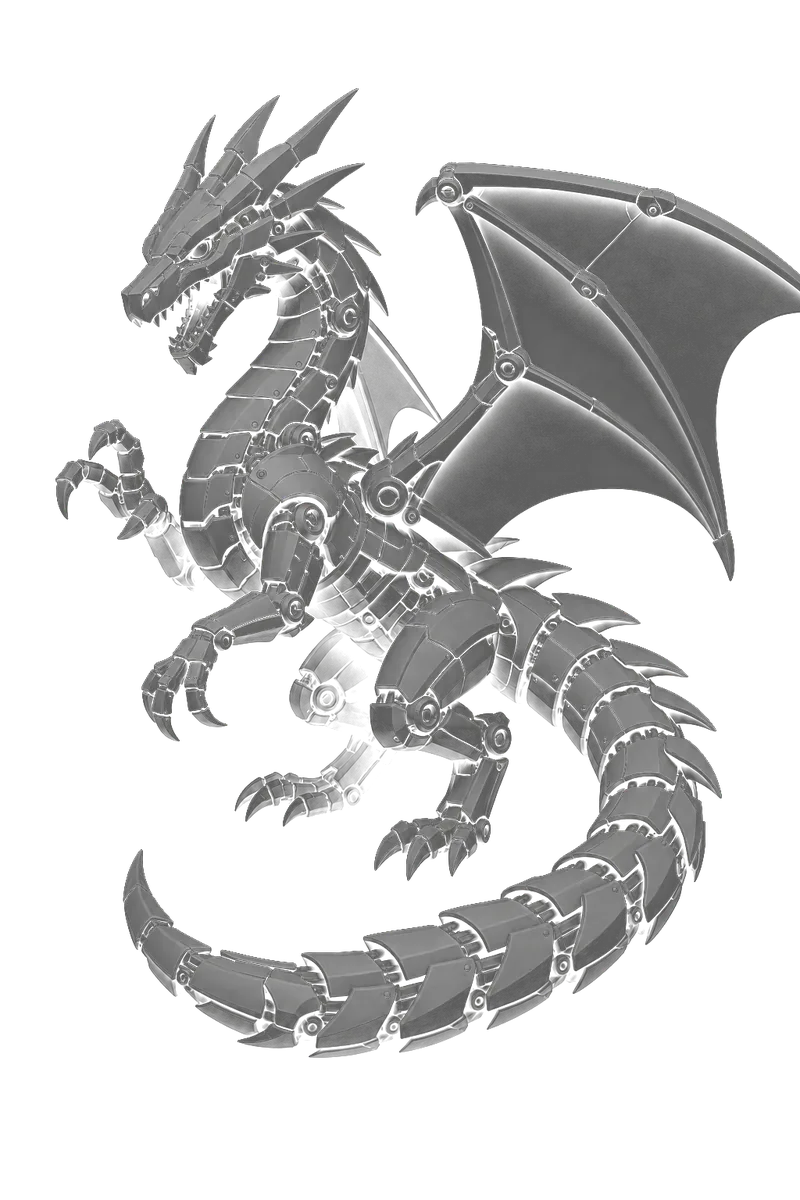
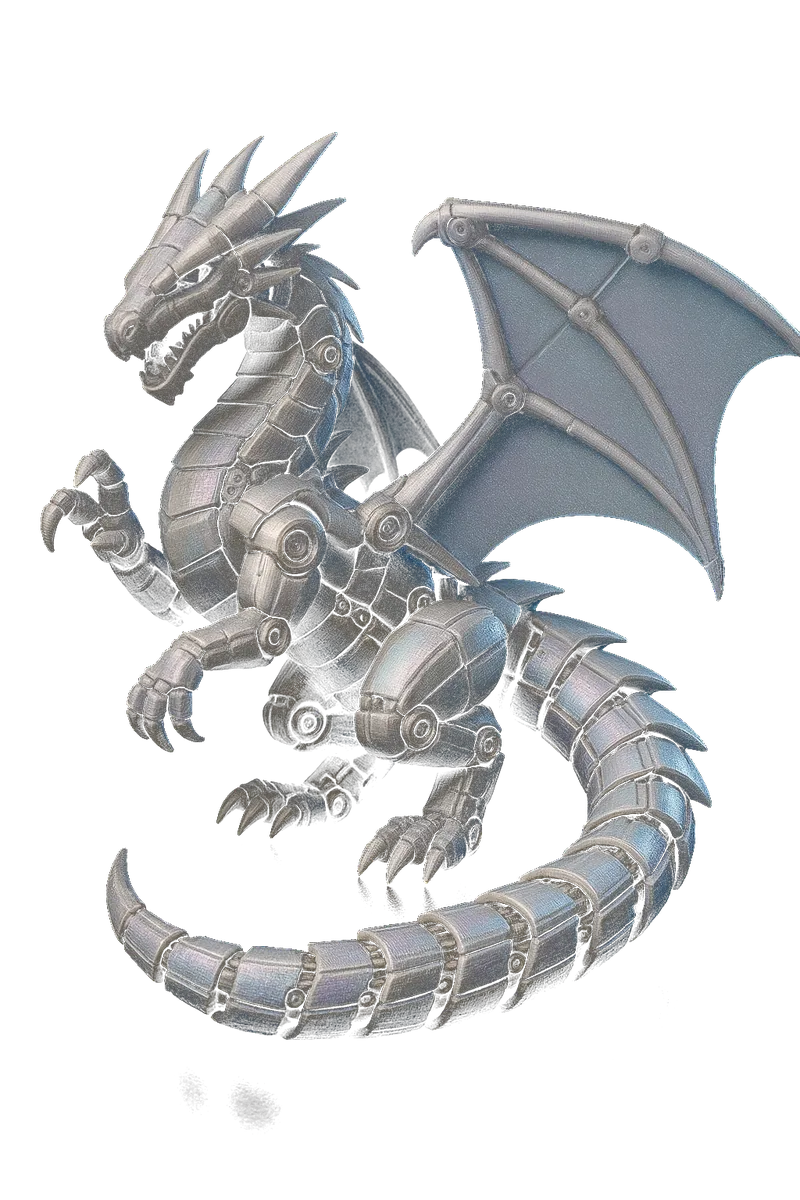
A model can look fine on screen and still contain holes, flipped faces, or broken edges. We check and repair the mesh before it reaches your print bed—and tell you if it cannot be fixed.

Holes repaired Faces corrected Broken edges checked
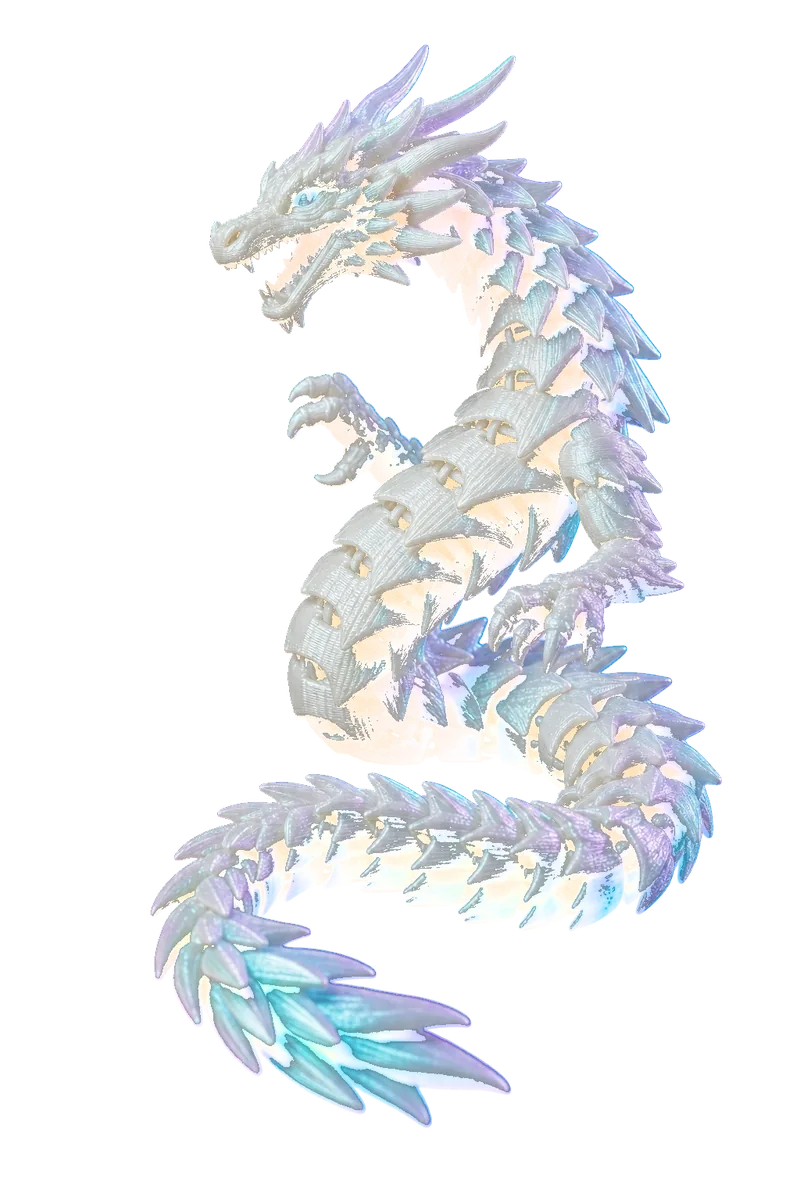
An articulated dragon as a plain grey untextured file. The same dragon, printed with clean even layers. Your file Your print
Holes repaired, faces corrected If it cannot be fixed, you know
Step 2 of 3

The right side faces up.
We choose it.

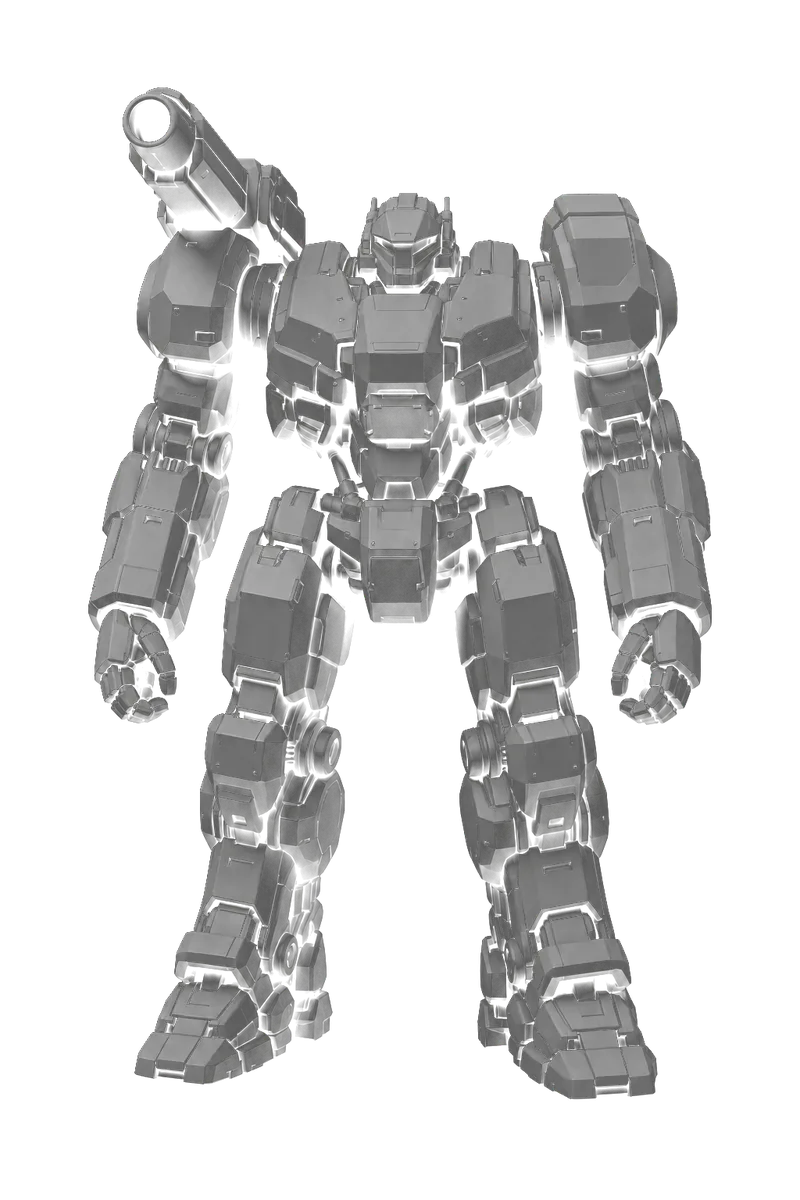
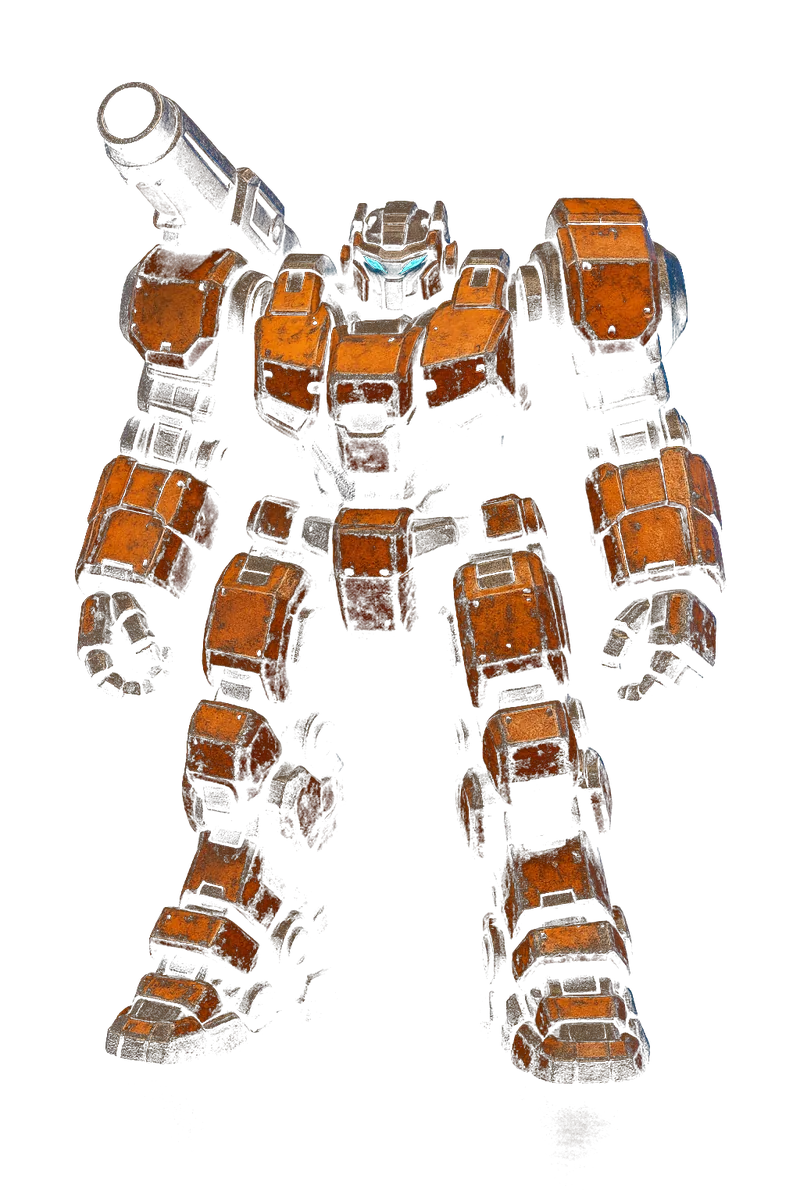
A bad orientation can bury the model in supports, scar the face people see, or send you back for a reprint. Slicer Ninja chooses the position for your goal, then arranges the model on your printer's bed.

Faster Print Higher Quality Stronger Part
A mech robot model as a plain grey untextured file. The same mech, printed and painted. Your file Your print
Set to Stronger Part
Step 3 of 3

Your printer. Your material.
Settings chosen.

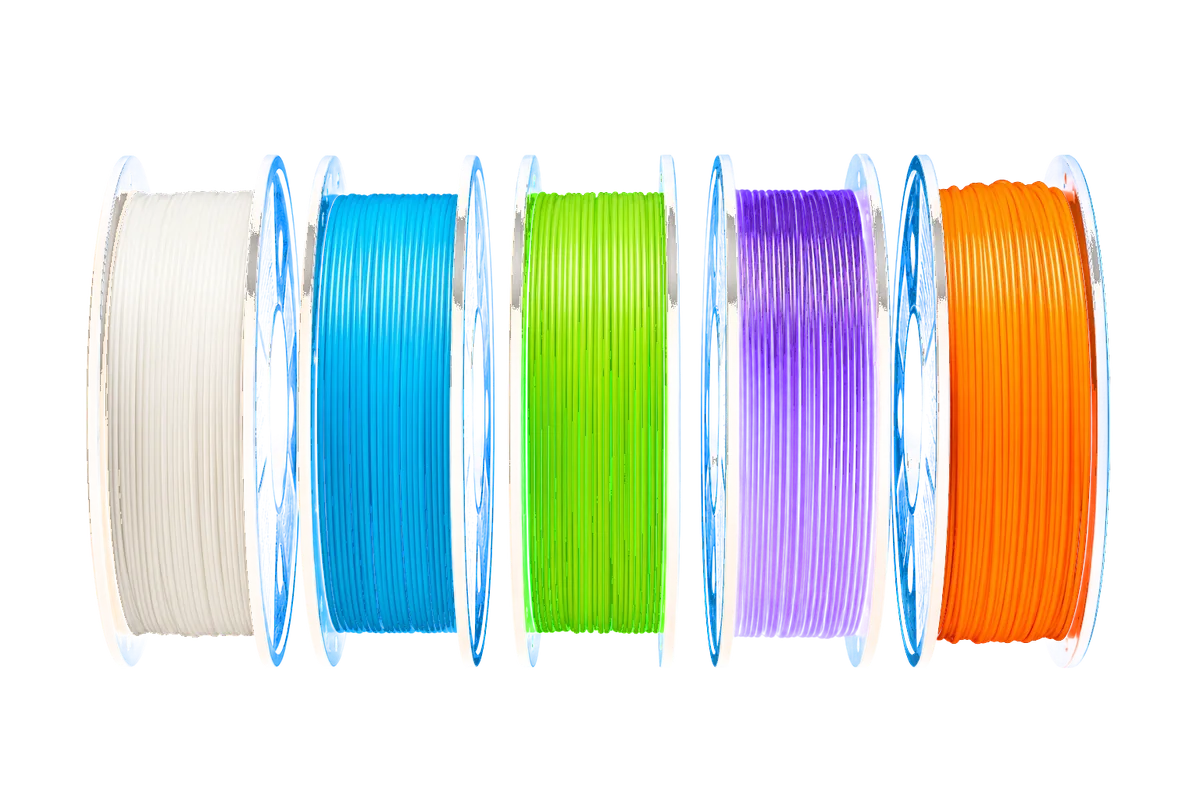
Stop hunting through profiles every time the printer or material changes. Layer height, speed, infill, walls, temperatures, cooling, retraction, supports, and bed adhesion are chosen for your setup. Every choice is explained in plain words and changeable.

PLAABSPETG TPUNylon
Filament spools in white, cyan, lime, violet and orange. Matched to your material Change anything you like

From model file
to slicer-ready

Characters, props, miniatures, working parts—the same setup work stands between each model and the print bed. Slicer Ninja does that work for you. Example models shown.

A printed character figure.Character figure
A printed articulated dragon.Articulated dragon
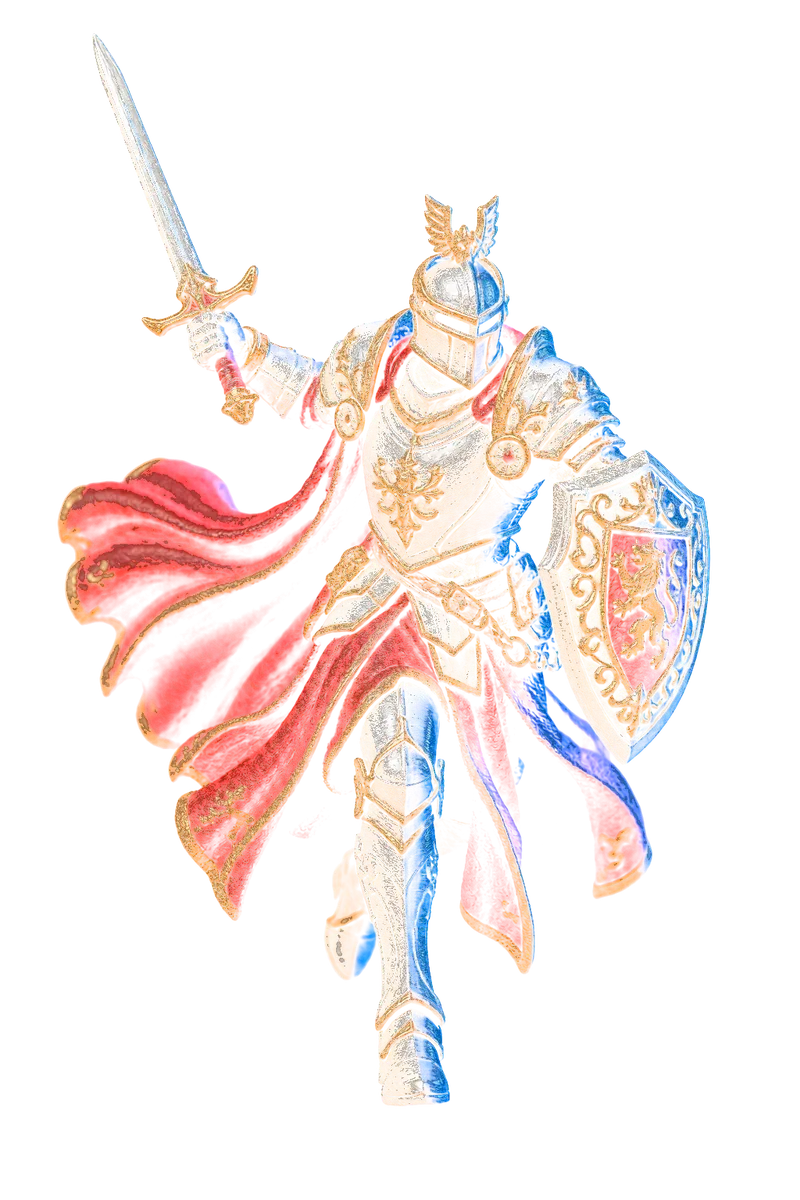
A printed armoured knight.Armoured knight
A printed mech.Mech
A printed cosplay prop.Cosplay prop
A printed scaled dragon.Scaled dragon
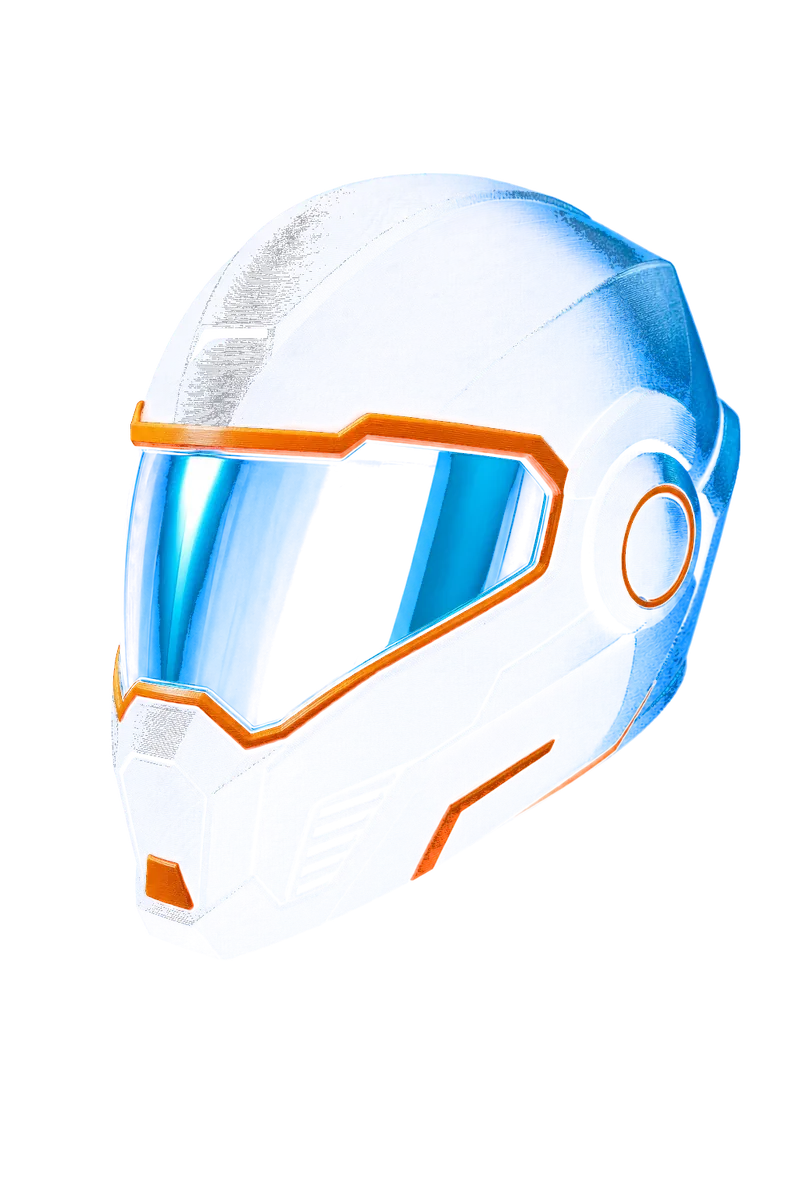
A printed display helmet.Display helmet
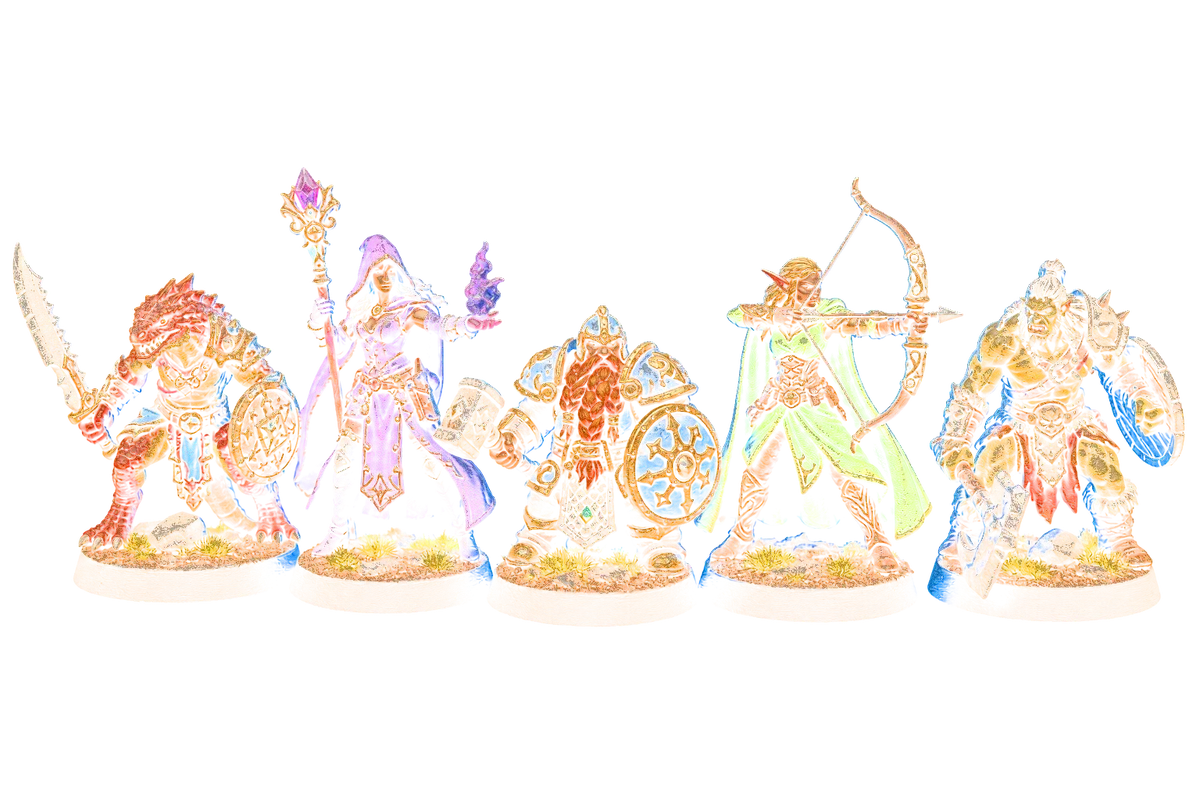
A printed tabletop minis.Tabletop minis
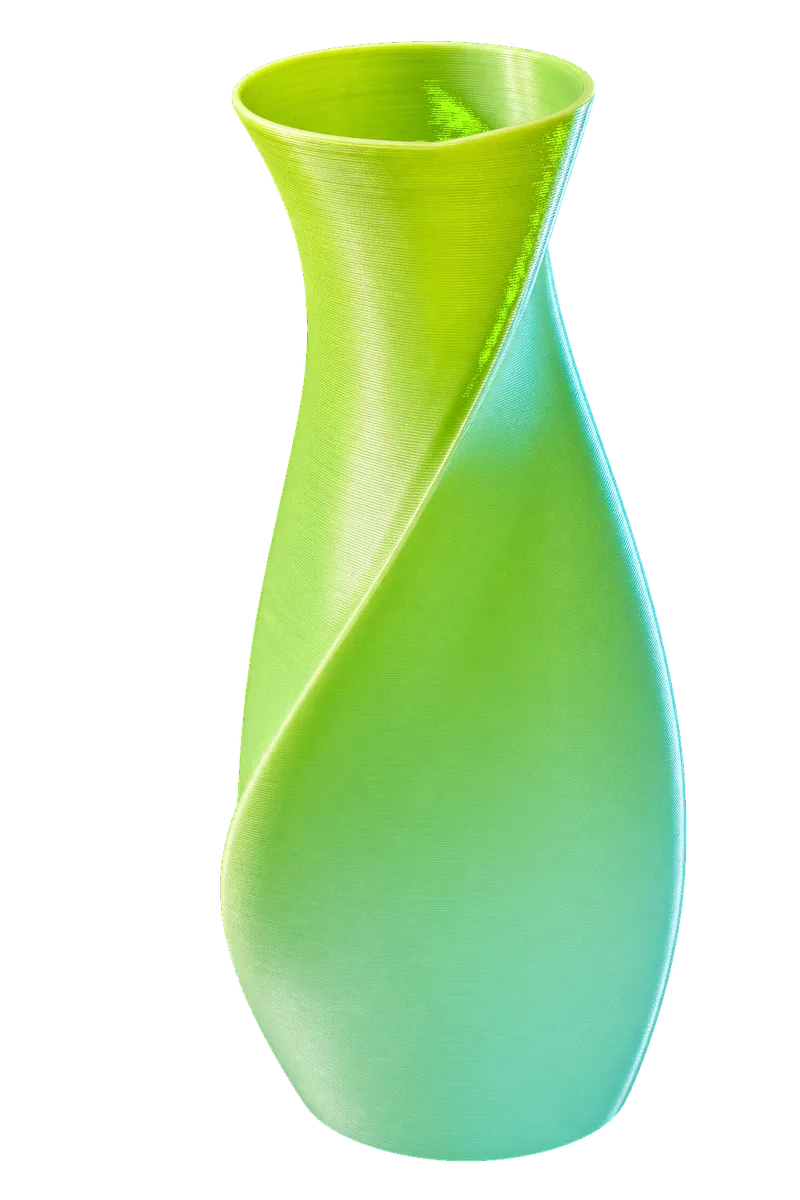
A printed spiral vase.Spiral vase
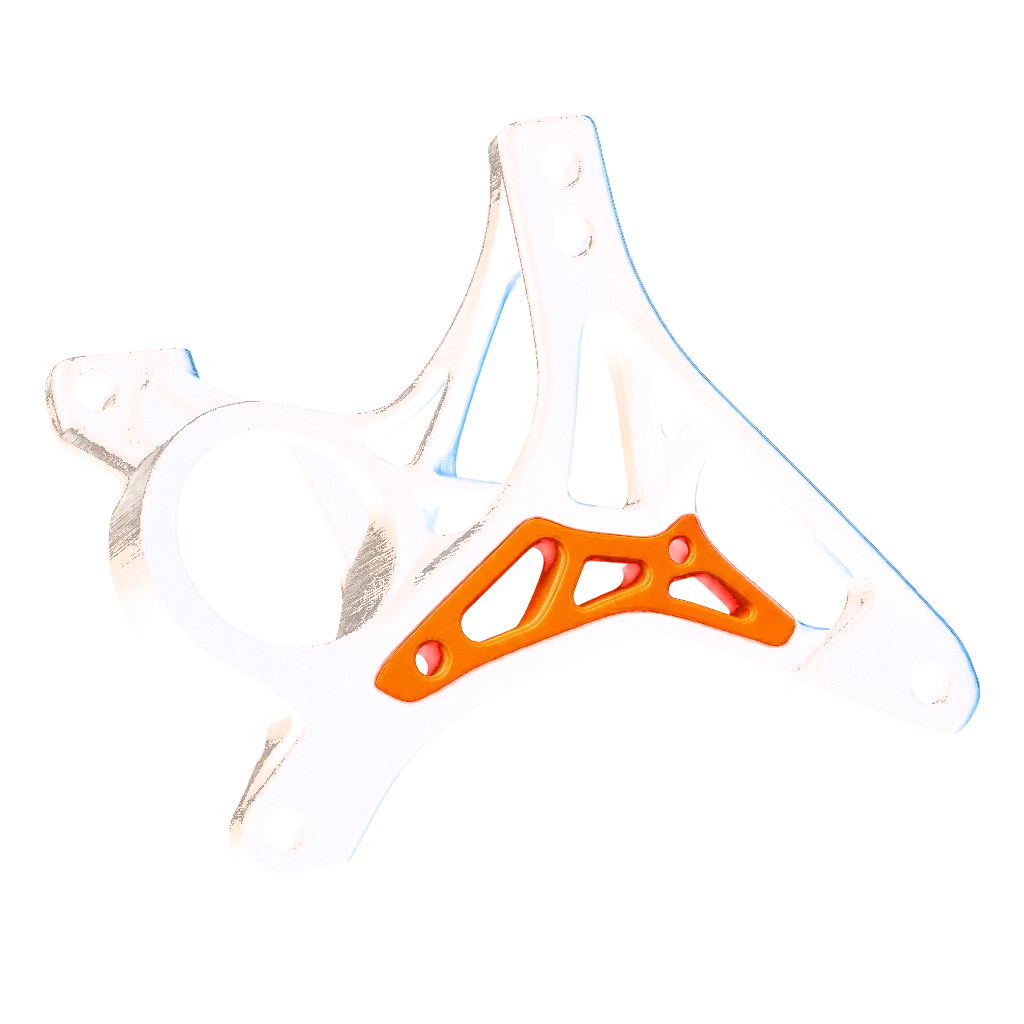
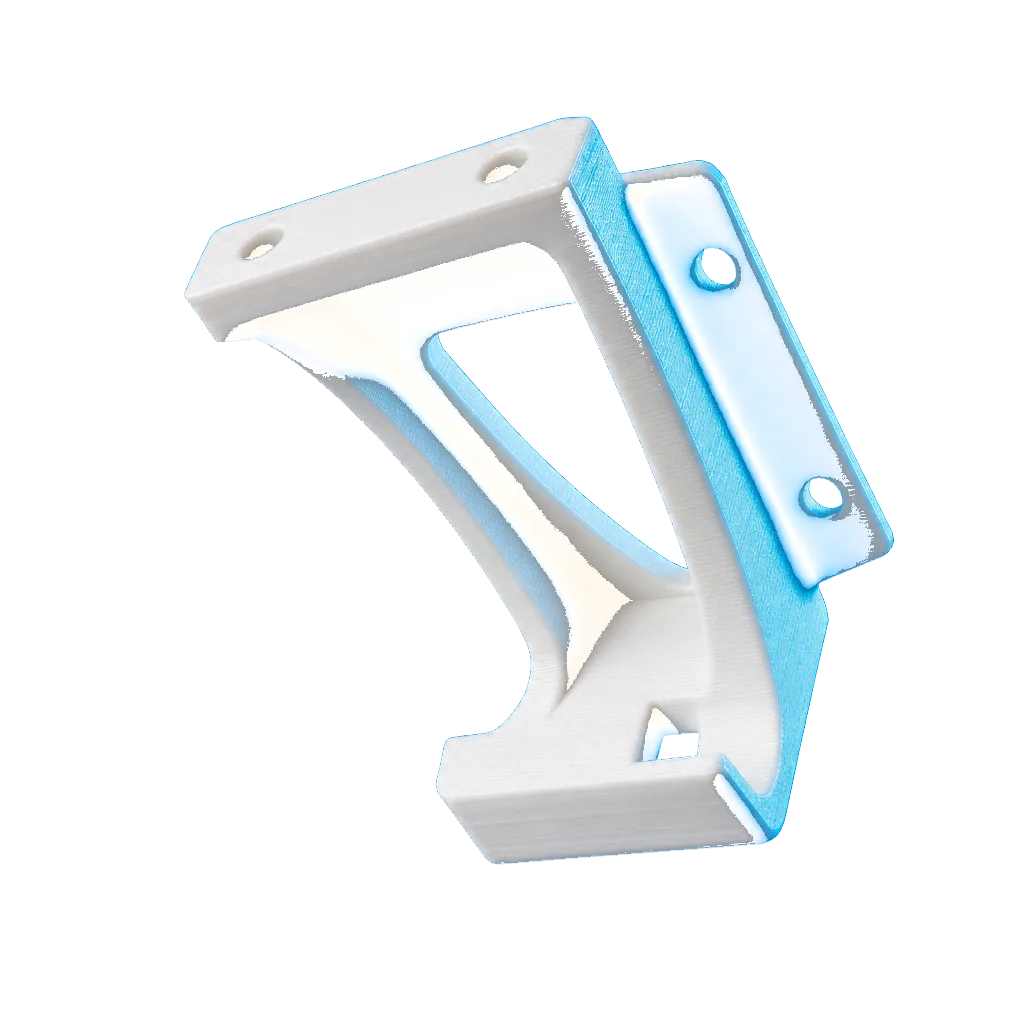
A printed working bracket.Working bracket
A printed overhanging part.Overhanging part
A printed mech.Mech
A printed armoured knight.Armoured knight
A printed character figure.Character figure
A printed cosplay prop.Cosplay prop
A printed articulated dragon.Articulated dragon

One platform.
More than one tool.

Model preparation

Slicer Ninja

Prepares your model and settings, then gives you a file that opens in your slicer with the work already done.

Details to come

Color Ninja

Another Slicer Ninja tool. Details will be shared when they are ready.

Fits what you already own

No new printer. No new software. No new habits.

Opens in

  • OrcaSlicer
  • Bambu Studio
  • PrusaSlicer
  • Cura

Handles

  • PLA
  • ABS
  • PETG
  • TPU
  • Nylon

Three ways to go

  • Faster Print
  • Higher Quality
  • Stronger Part

Pick the plan
that fits how you print

Every plan includes a monthly credit allowance. Preparing a model uses credits; top-ups let you keep going without changing plans.

The ones people actually ask

Do I need to know every slicer setting?

No. Choose whether you want a faster print, higher quality, or a stronger part. Slicer Ninja handles the setup and explains what it chose.

Which slicers does it work with?

OrcaSlicer, Bambu Studio, PrusaSlicer and Cura.

Can I change what it picked?

Yes, all of it. Every setting is visible, explained and yours to change.

What is a credit?

Preparing a model uses credits. Your plan includes a monthly allowance, and you can top up separately.

What happens to my files?

They are kept for 7 days with a visible countdown, then deleted.

What if the AI is unavailable?

You still get a conservative, valid setup instead of a failed job.

What is Color Ninja?

It is a second tool on the Slicer Ninja platform. More details will be shared later.
Files deleted after 7 days.

Stop setting up.
Start printing.

Your model, printer, and material go in. A slicer-ready file with explained, changeable choices comes back.

Prepare a model
Opening01 / 11